

Why this matters
The few questions Spyro AI asks during setup help it work smarter for you later. Once Spyro AI knows your brand, who you sell to, and who you compete with, it can write better content, ask the right questions to AI assistants, and give you fixes that actually fit your site.Sign up
1
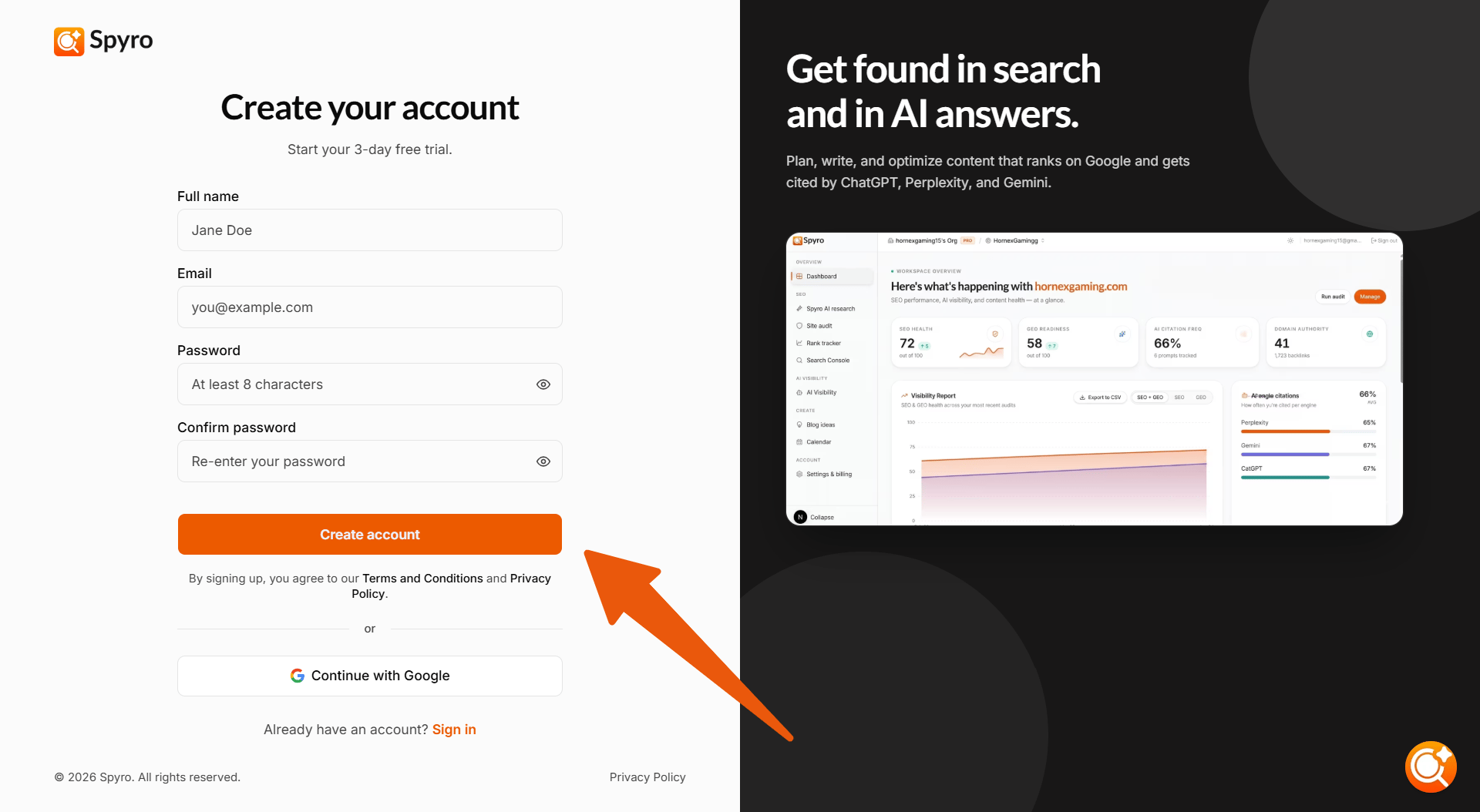
Create your account
Open the sign-up page and start your free trial. Enter your name, email, and a password - or choose Continue with Google to skip the password step.
2
Confirm your email
Spyro AI emails you a short verification code. Type it in to confirm your address. If it doesn’t arrive, click Resend code. (If you signed up with Google, you can skip this step.)
3
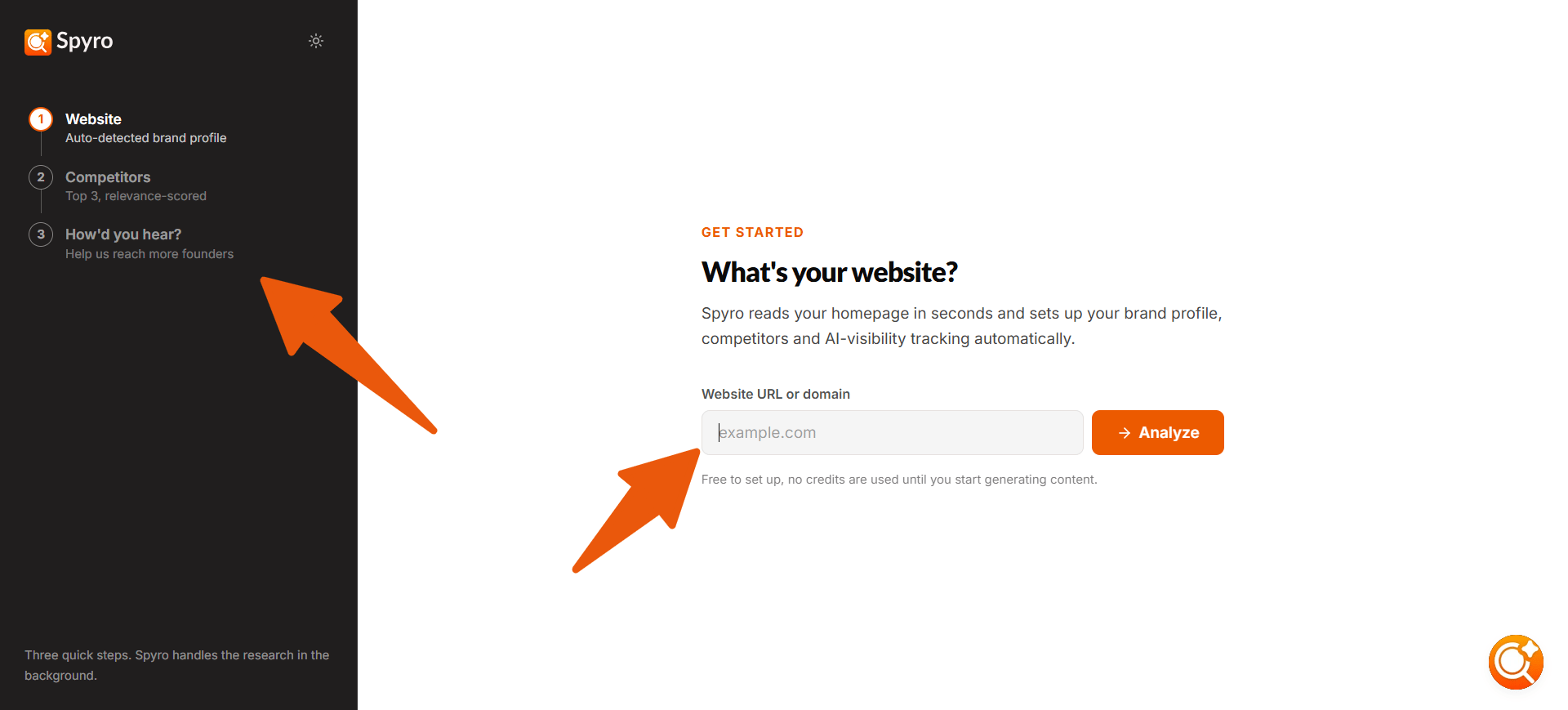
Add your website
On the first setup screen, enter your website address (for example,
example.com) and choose Analyze. Spyro AI starts learning about your site right away.What Spyro AI does automatically
The moment you add your website, Spyro AI takes a quick look at it and pre-fills much of your setup for you. Anything it figures out shows up with an Auto-detected from your website label, so you know it came from your site. Spyro AI automatically works out:- Your brand name, brand color, logo, and language
- Your audience - who your site is for, and a short description of your business
- Your competitors - other sites going after the same customers
- A starter set of AI-visibility questions - the buyer questions Spyro AI will ask AI assistants to see if they mention you
Spyro AI only reads your public pages - the same ones any visitor can see. Everything it fills in is a draft you can edit. Change anything you like, and Spyro AI won’t overwrite your edits.
Finish the setup
Spyro AI walks you through a short, friendly wizard so you can review and tweak what it found. You can move forward and back, or jump to any step:Business profile
Business profile
Confirm the basics - brand name, color, logo, language, and country. Your country helps Spyro AI find the right competitors for your region.
Your audience
Your audience
Review who your site is for and your business description. Keep at least one audience group to continue.
Competitors
Competitors
Review the rivals Spyro AI found. Add or remove any. If the list looks off, click Retry to search again.
Blog setup
Blog setup
Point Spyro AI at your existing content to learn from - your blog and a few of your best articles. You can also connect Google Search Console here to bring in real search data.
Article style
Article style
Set the defaults for content Spyro AI writes for you - tone, focus, publishing pace, and featured-image style. You can change these later.
AI visibility questions
AI visibility questions
Review the buyer questions Spyro AI will ask AI assistants every week. Edit them to match how your customers really search for what you offer.
A couple of quick questions
A couple of quick questions
Spyro AI asks whether you’d like a hand setting up, and how you found Spyro AI. Then choose Finish setup.
Landing in your workspace
When you choose Finish setup, Spyro AI takes you to your dashboard and starts the heavy lifting in the background - looking over your whole site, running your first audit, and putting together a starter content plan. You’ll see a setup banner and a content-plan progress note while that work runs. The cards on your dashboard fill in on their own as the results come in - no need to refresh.Related
Your dashboard
Explore the home base of your new workspace.
Run your first audit
Check your site health and get actionable fixes.
Workspace settings
Update domain details, competitors, and preferences.
Plans & billing
Learn how credits and subscriptions work.